Refreshing New Look
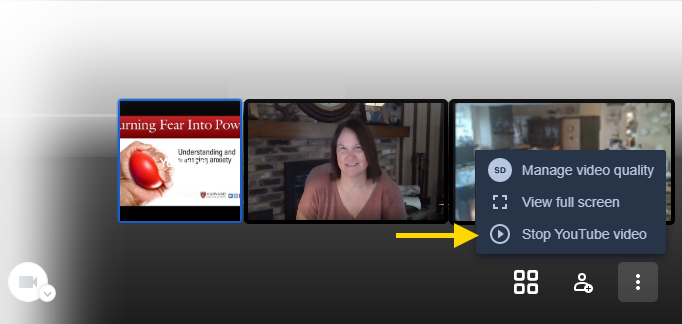
When your practice updates to the newer version of Medpod, you will notice an improved visual experience with a cleaner background and appearance. Several access points for your common features were also enhanced or repositioned.
Improved Bandwidth/Connectivity Autocorrection
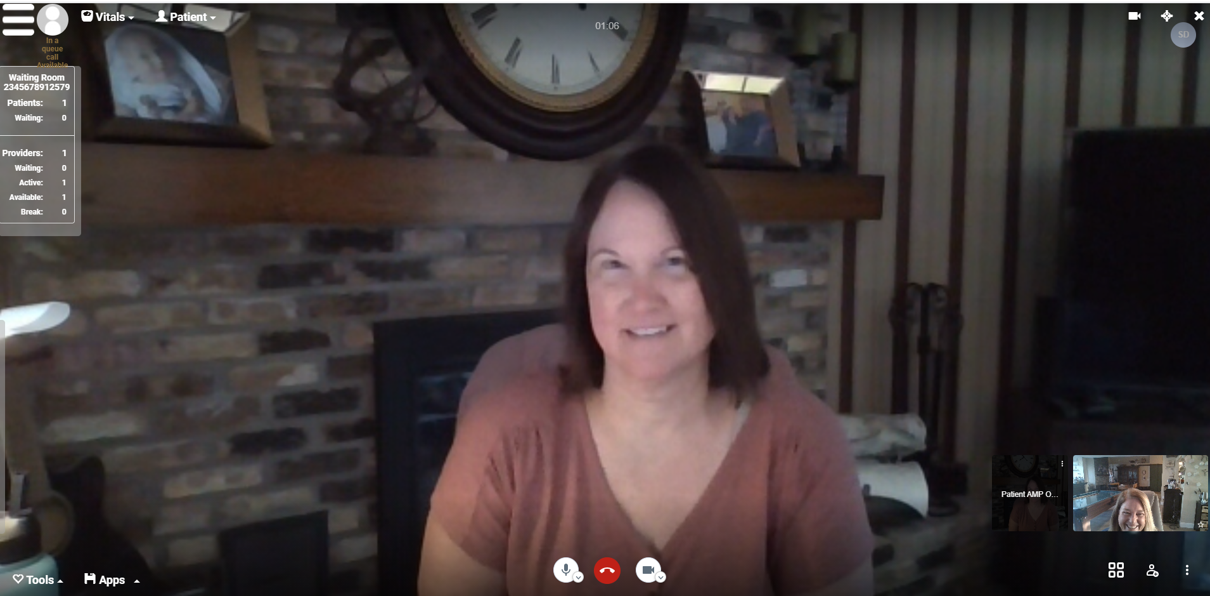
The video visits system can now detect browser, camera, and mic settings to help adjust both provider and patient bandwidth automatically. This update allows the video visit to hold onto calls better with less dropping or interruption. Patients receive communication on screen as they begin connecting to let them know of any incompatibilities.
Enhanced Microphone and Camera Settings
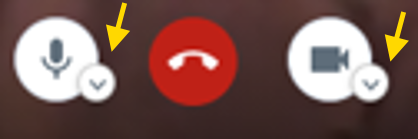
You can now find the mic and camera settings in a drop-down arrow next to the mic and camera icons. This allows you to choose the microphone and/or camera to use during the visit to help improve any audio issues you experience.
Slide-out Waiting Room
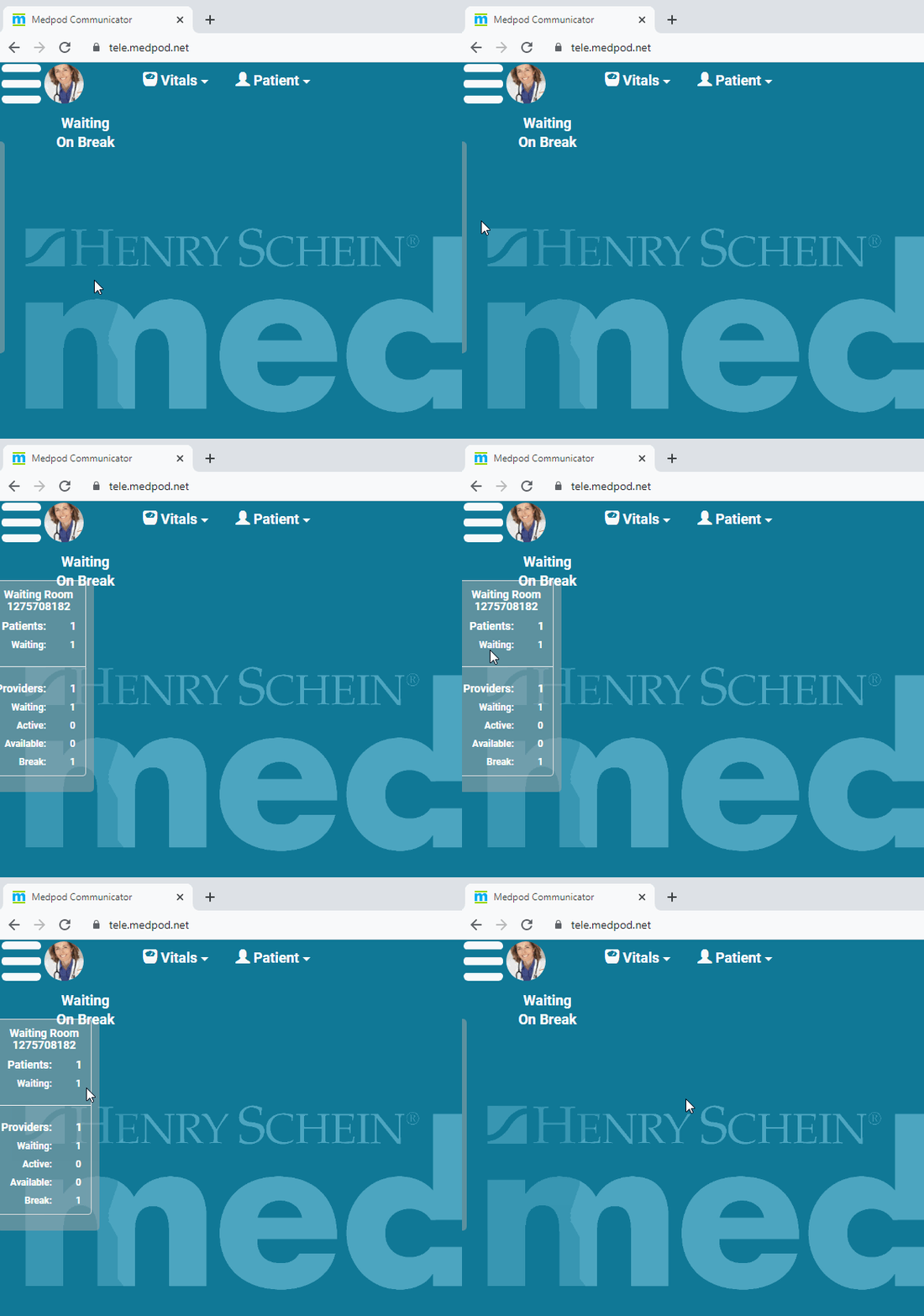
In the new version, you will notice that you have more real estate for the actual video with your patient. To see how many are in the waiting room (and WHO is in the waiting room), hover over the left side of your screen to slide out the waiting room details. Then hover over the waiting list to see the names of the patients waiting.
Add Vitals
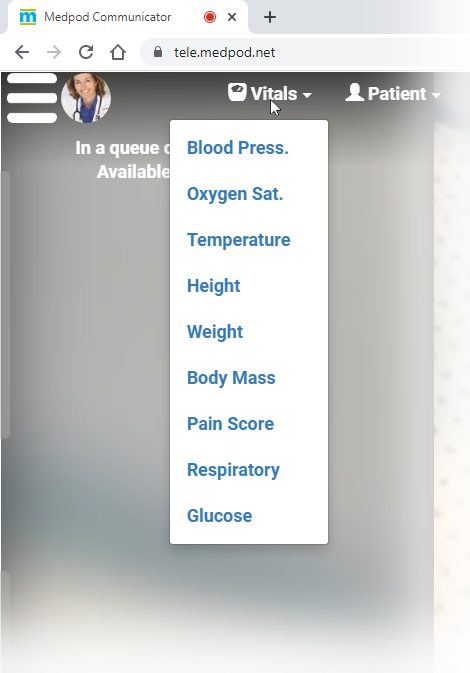
You can now add patient vitals during the visit. Click the Vitals option at the top of the video visit, and select the information you want to enter. If you add a SOAP note from this visit, the vitals import into it automatically for you.
Slide-out Vitals
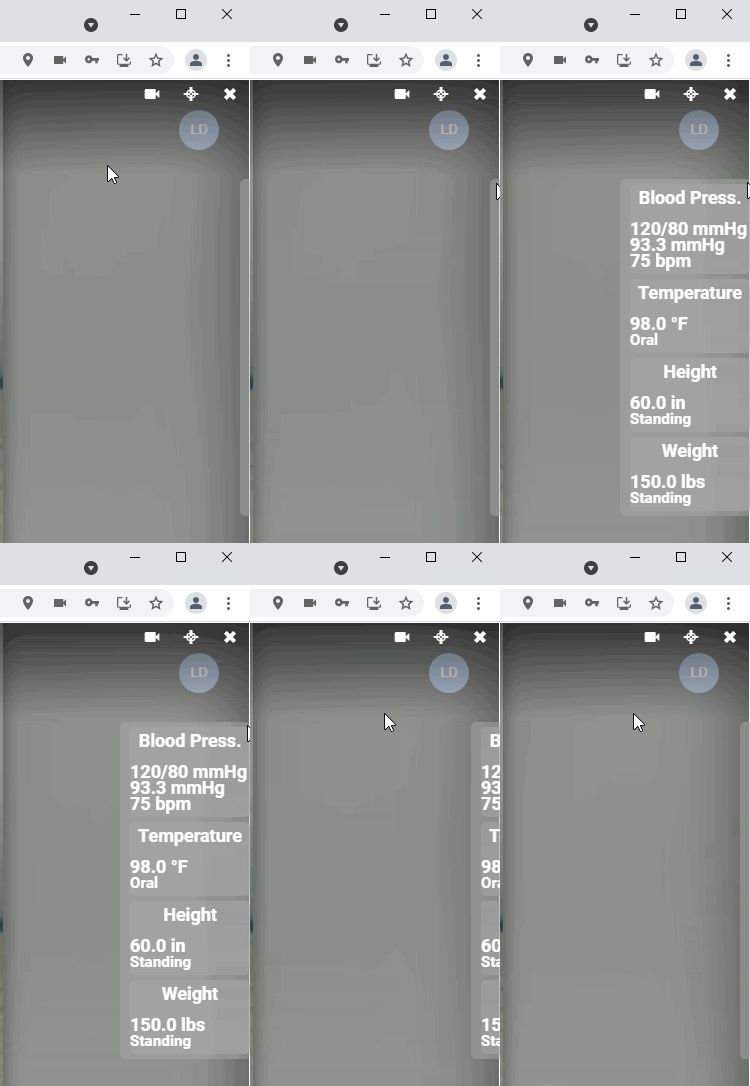
On the far right of the screen, you can now hover over the edge of the video, and the vitals panel slides out to display any vitals you entered during the visit for quick reference.
Complete and Save SOAP Note
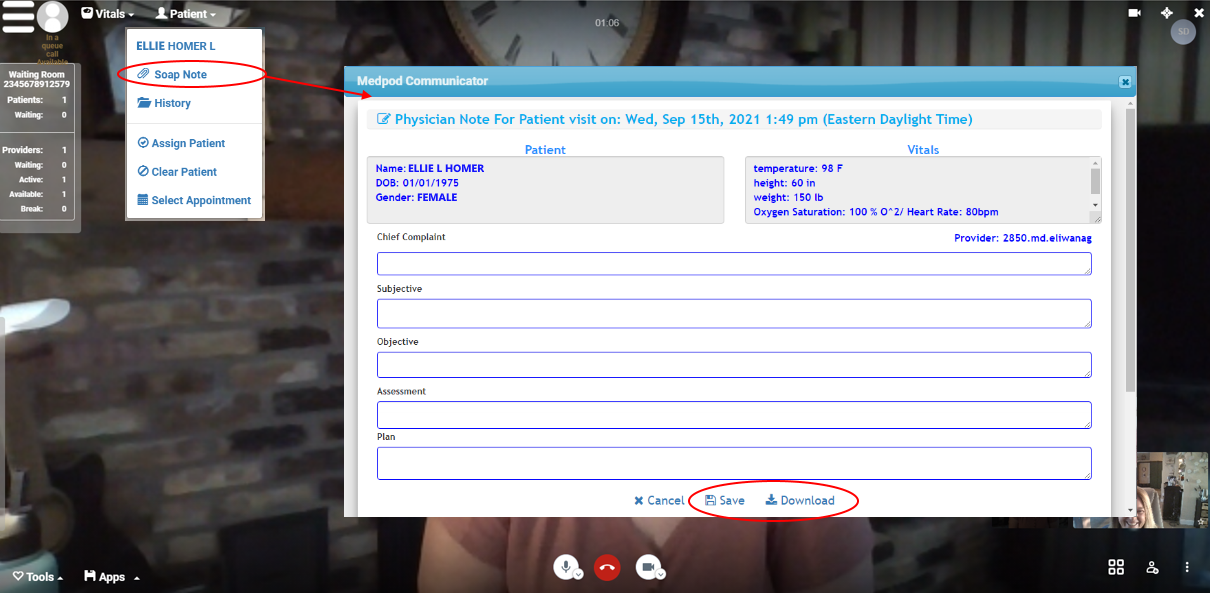
If you cannot access your EMR during the visit, you can now record a short SOAP note that you can then download as a PDF and attach to the patient's chart in your EMR. At the top of the visit screen, click the Patient option and select Soap Note.
Add Others to a Video Visit
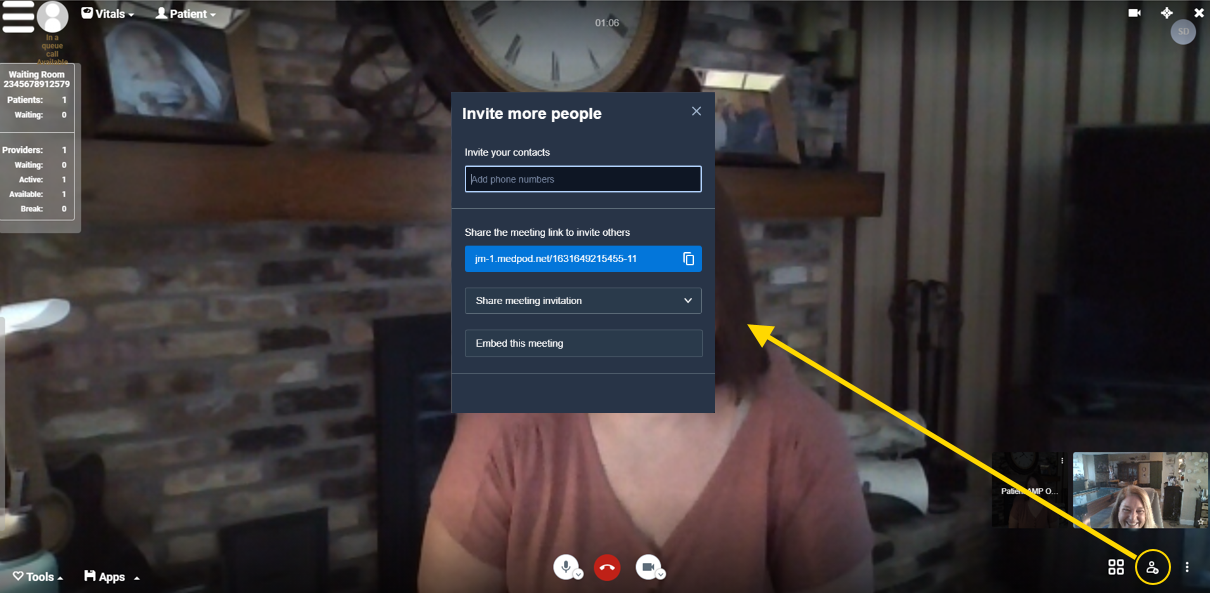
Add other people to the patient's video visit. You can add more members of the patient's family, counselors, other members of the patient's care team—up to nine additional participants. In the lower righthand corner of the visit video, click the add participant image. This lets you send a link to other people.
Capture an Image
An exciting new feature allows you as the provider to use the patient's camera on their device to capture an image remotely and annotate it on your end to save into the patient's record. In the upper right corner of the screen is a snowflake icon. When you click this icon, the video visit opens up a capture window. Ask the patient to hold up to their camera whatever you want to capture.
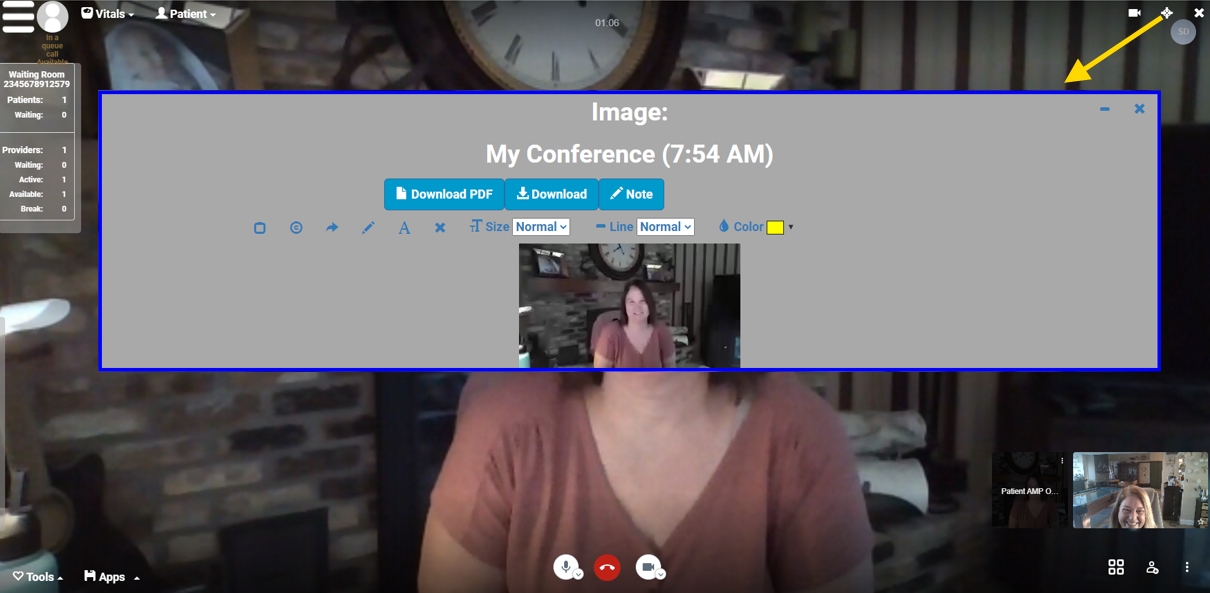
Then you can use the controls to capture the image, mark it up, and download it as a PDF or image to save in the patient's chart.
New Tile View
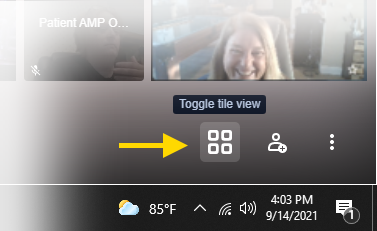
From the bottom right tool bar, you can now change how you view the participants of the call. You can tile them side by side next to each other or you can show picture in picture.
Show Instructional Video from YouTube
If you have instructional videos or other educational videos you want the patient to watch during the visit, you can now share a YouTube video with the patient. In the lower right-hand corner, click the three vertical dots and select Share a YouTube video from the options.
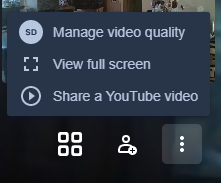
Enter the link when prompted and play the video. When done, click the vertical dots again to stop playing the video.